Run an AI-moderated study
Analyze topics
In a Self Service Chat project, Admin and Member can prepare each interview-guide topic for analysis, review the proposed codeplan, and then classify the topic’s notes. This page covers that process up to completion, not the resulting summary and chart.
The following steps apply exclusively to Chat projects.
The following steps apply exclusively to Self Service.
In Managed Service, xelper generates the codeplan and starts the analysis. Admin and Member can review and edit the prepared codeplan before classification.
Before you start
First set the planned interview count under Project Overview. The analysis controls appear once that many valid interviews have been completed. All valid interviews must also be fully processed. If processing is still underway or has failed, xelper blocks the creation of categories and scale values and shows the reason on the topic page.
1. Open a topic
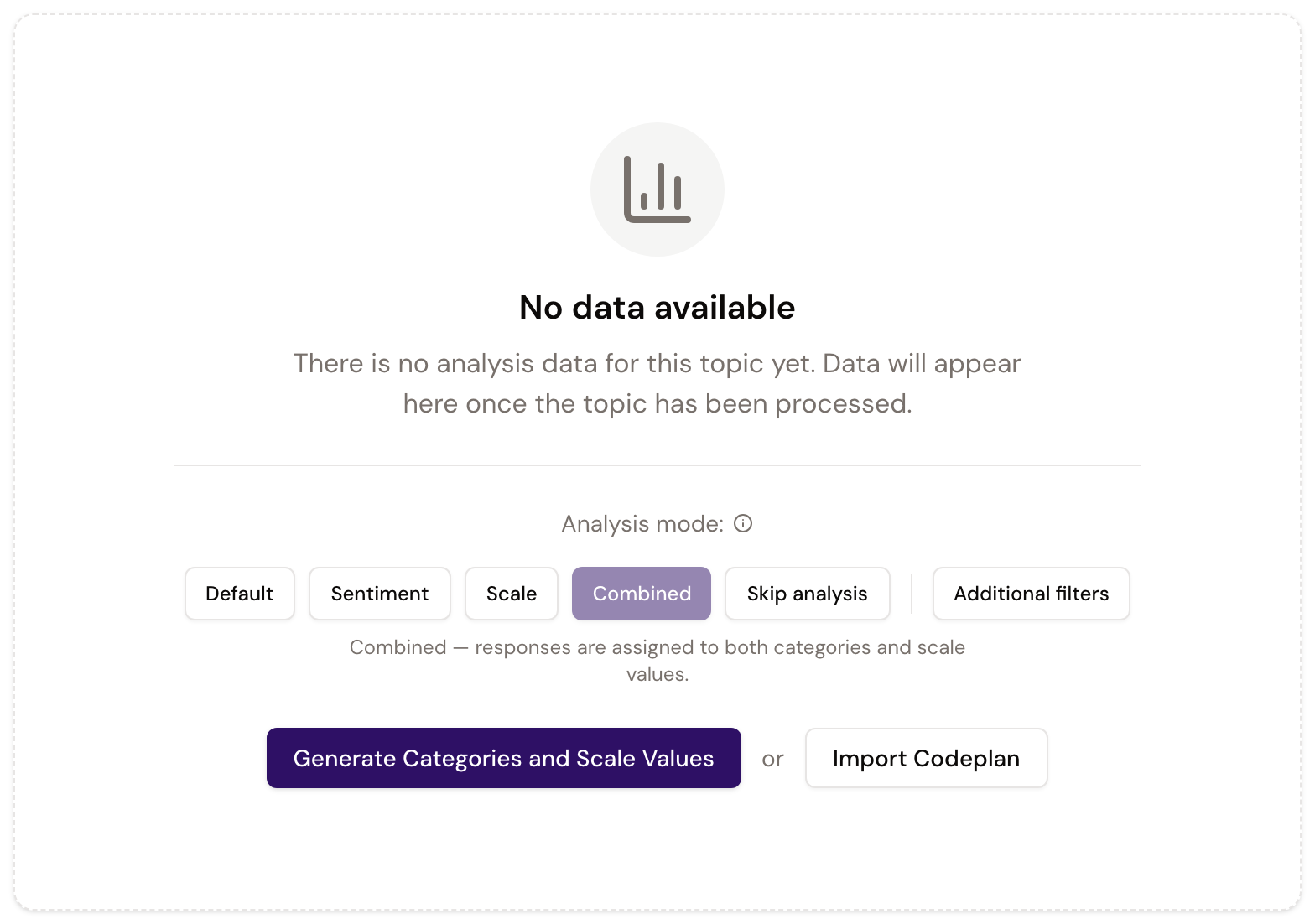
Open Overview, find the topic you want to analyze, and select it. Before any analysis has been created, the page shows the topic name, original question, active follow-up questions, and additional instructions from the interview guide.
Review these together. The analysis mode must represent the whole topic, including its follow-ups—not only the opening question.
2. Choose the analysis mode
Use the buttons under Analysis mode to choose how answers should be structured. The following cards connect each mode directly with its resulting presentation.
Default
Groups answers to one broad research question into categories.
One bar per category.
Sentiment
Adds positive, neutral, and negative sentiment to each category. Use it when the same subject can be evaluated in different ways, rather than for a question that already asks only what participants liked or disliked.
Stacked sentiment for each category.
Scale
Creates one distribution across ordered scale values. The questions should measure the same thing with the same scale.
Distribution of responses across scale values.
Combined
Connects one categorical dimension with one related scale, such as which features matter and how important each one is.
Scale distribution within each category.
Skip analysis
Keeps the question in the interview but creates no analysis for that topic.
No analysis results are generated.
The same previews are available from the information icon beside Analysis mode. Separate research questions that cannot share one category system or one scale must be created as separate interview-guide topics before fieldwork begins. A topic that has already been used cannot be split during the later topic-analysis process.
Additional filters can link other topics to the current topic. Their categories then become filters and comparison groups during analysis without changing the current topic’s own categories.
3. Generate or import the codeplan
The available action follows the selected mode:
- Generate Categories for Default or Sentiment;
- Generate Scale Values for Scale;
- Generate Categories and Scale Values for Combined.
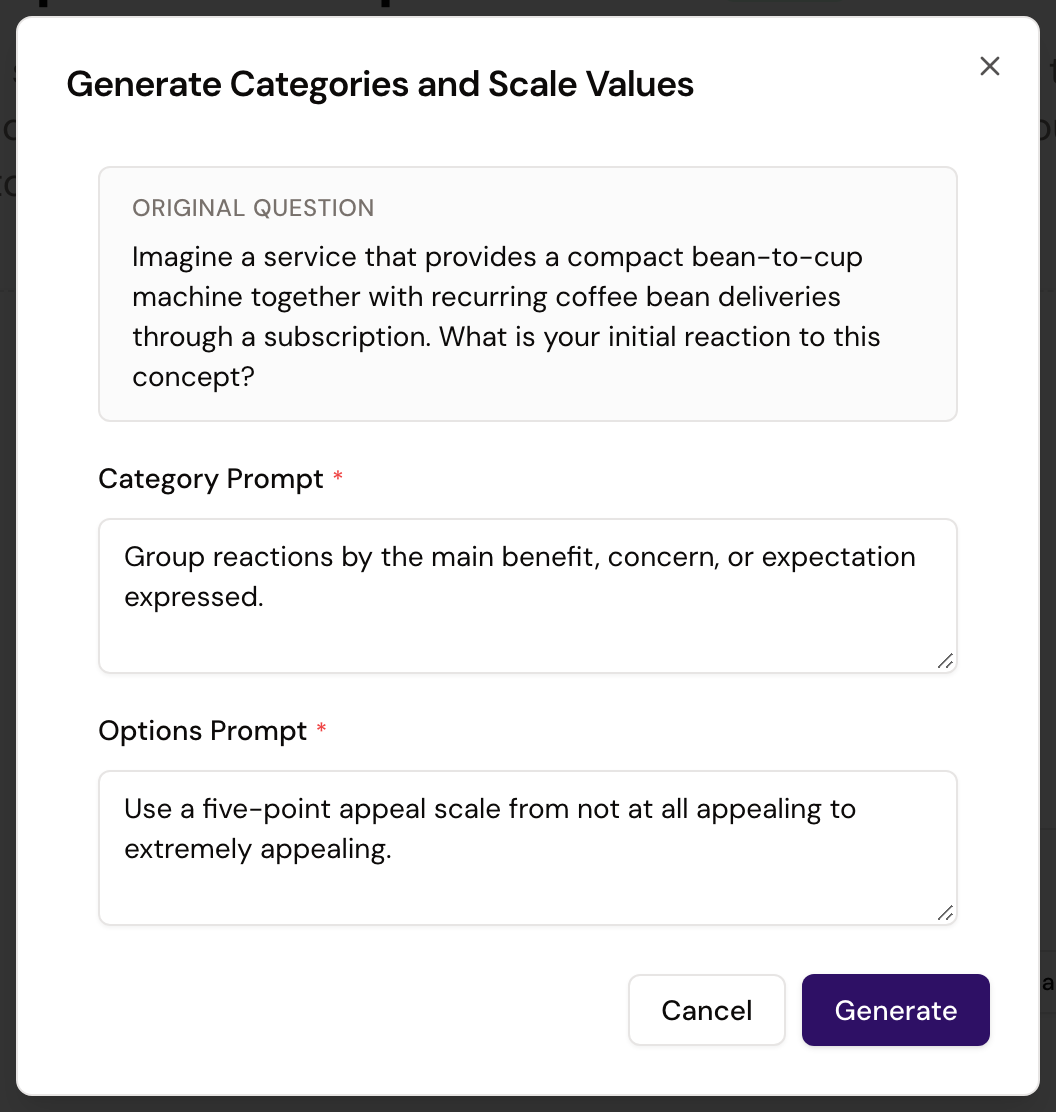
The confirmation dialog repeats the original question, follow-ups, and additional instructions. Add a Category Prompt when the categories need a particular focus or level of detail. Add an Options Prompt to describe the required scale values.
Both prompts are required for Combined. xelper proposes them from the topic questions, and you can edit the suggestions before continuing. Keep categories and scale values separate: describe only the categories in Category Prompt and only the ordered values in Options Prompt.
If an existing topic already has the right structure, choose Import Codeplan instead. Select the source project and topic to copy its categories, coding rules, analysis mode, and scale values. Review the imported structure against the current question before using it.
4. Review the codeplan
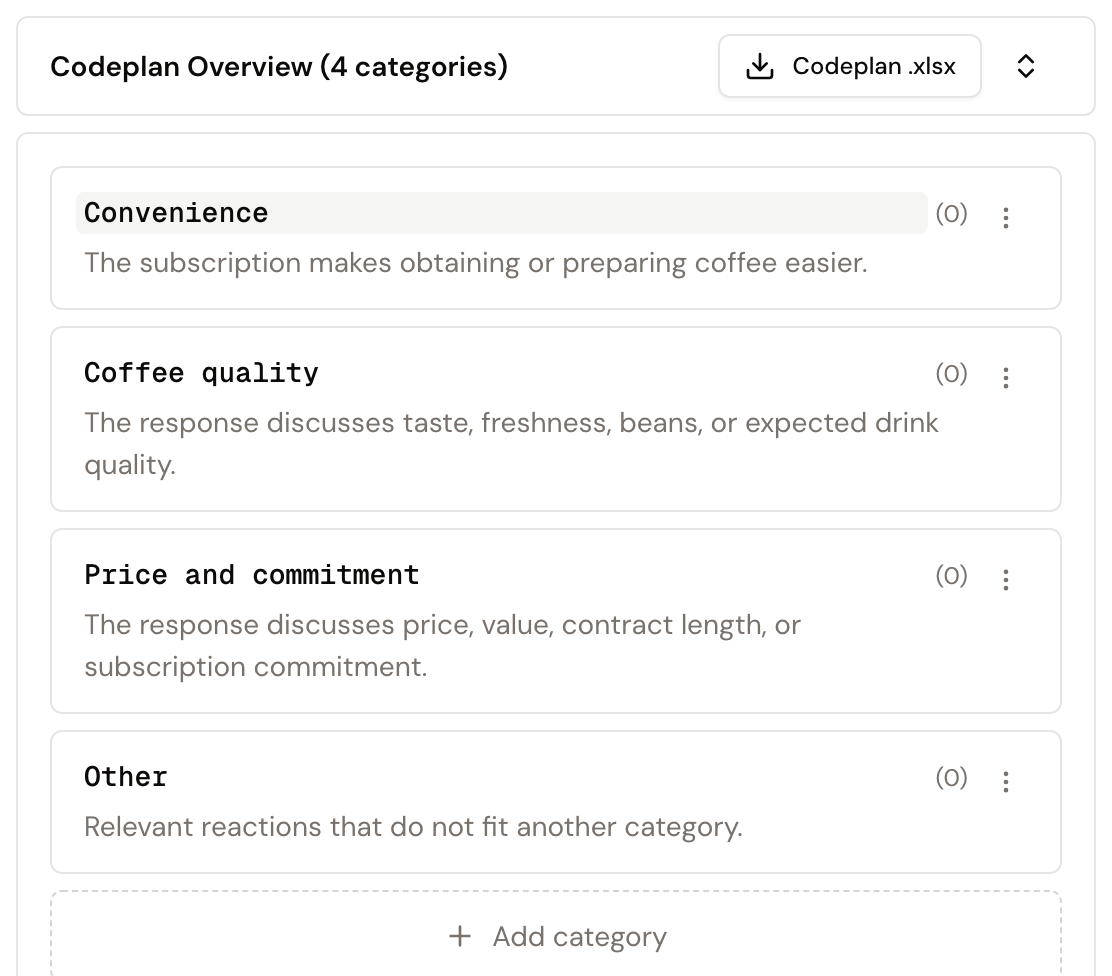
Open Codeplan Overview after generation. For each category, check that the name is concise and that the coding rule clearly distinguishes it from neighboring categories. You can edit the text directly, add or delete categories, or ask the assistant to rename, merge, split, or refine them.
For Scale and Combined, also review Options / Scale Values. Keep the values in a clear order and use labels that can be applied consistently to the answers. Scale mode lets you edit the scale values.
Assistant changes remain pending until you choose Keep or Keep all. Use Revert when a suggestion does not fit. If the whole proposal needs to be replaced, Reset codeplan deletes all generated categories and scale values so you can start again.
5. Create the analysis results
When the codeplan is ready, select Create analysis results. The Classify Prompt in the confirmation dialog is optional; use it only for an instruction that should affect how notes are assigned to the approved categories.
xelper classifies the topic’s notes in the background and shows the number completed out of the total. The page updates as it moves through classification and the remaining generation steps. If processing fails, correct the reported problem and choose Retry.
Do not change the codeplan while classification is running. Once processing completes, the topic opens in its generated analysis view; that view is covered separately from this setup process.

Who can analyze topics
In Self Service Chat projects, Admin and Member can generate and review codeplans and create analysis results. Client has read-only access and cannot run topic analysis.
Next step
When a topic has finished processing, continue by using the topic results page to read its summary, interpret the chart, and trace findings to their notes.