Run an AI-moderated study
Prepare the interview guide
On the Interview Guide page, you decide what the AI asks, how it follows up, and how participants experience the interview. This is where you edit and test the guide, manage variants, and prepare links for testing and fieldwork.
The following steps apply exclusively to Chat projects.
Admin and Member can edit the guide and its settings. Client has read-only access.
Understand the page
The guide appears on the left. It contains the Opening, the interview questions, and—except in Online Survey mode—the Closing. On the right, you can switch between Interview Guide Assistant and Test Interview Guide. Drag the divider to resize the two areas.
Below the page title, xelper estimates the maximum interview duration. If questions are limited to particular segments, the detailed view also shows the duration and number of questions for each segment. Use this estimate to identify an overly long guide, but confirm it with realistic test answers.
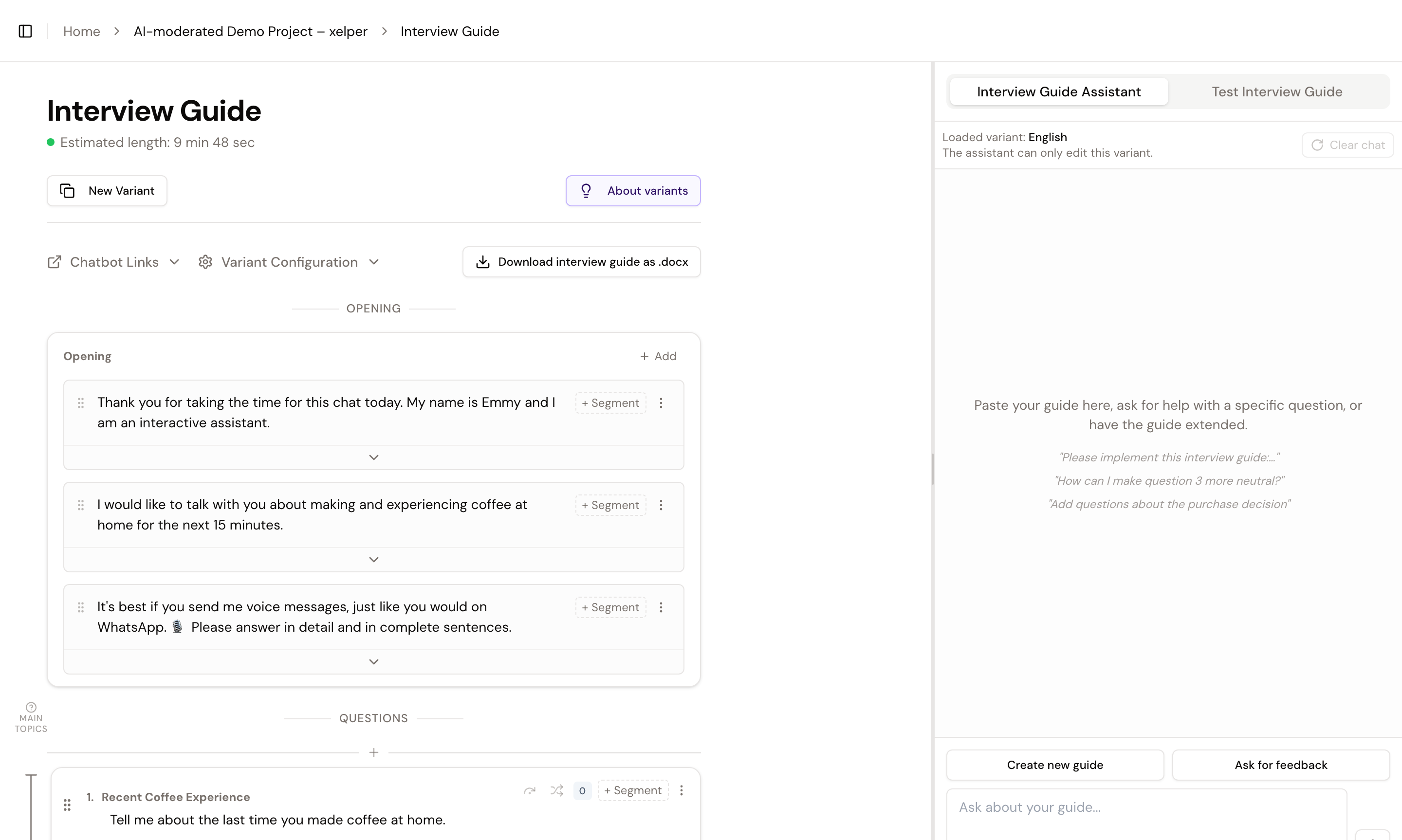
Text and setting changes are saved directly.
Opening, questions, and Closing
The Opening starts the interview. You can add several Opening messages, reorder them, and restrict them to particular segments. The AI shows these entries before the regular questions.
The main guide appears under Questions. Each card contains a short topic name and a starting formulation for the question. The AI follows this wording closely, but it does not have to repeat it word for word: it can adapt the question to the conversation so far and to the participant’s response. The topic name supports later navigation and analysis; it is not the question shown to participants. Use unique names so results can be assigned reliably.
The Closing is delivered verbatim at the end. Online Survey response modes do not include a Closing.
Click any text to edit it directly. Drag the handle on the left of a question to change its position. The plus lines between questions insert a new question at that point; Add new question adds one at the end. From the three-dot menu, you can see which interviews use a question or delete a question that is still eligible for deletion.
Main topics for orientation
Main Topics group related questions in the editor. They are for orientation only and do not appear in the interview. Use the plus to the left of a question to create a main topic. Its bracket shows which questions belong to it; drag either end to expand or reduce the group. Open the main-topic name to remove the grouping.
Control follow-up questions
The colored label on each question determines how the AI continues after the first answer:
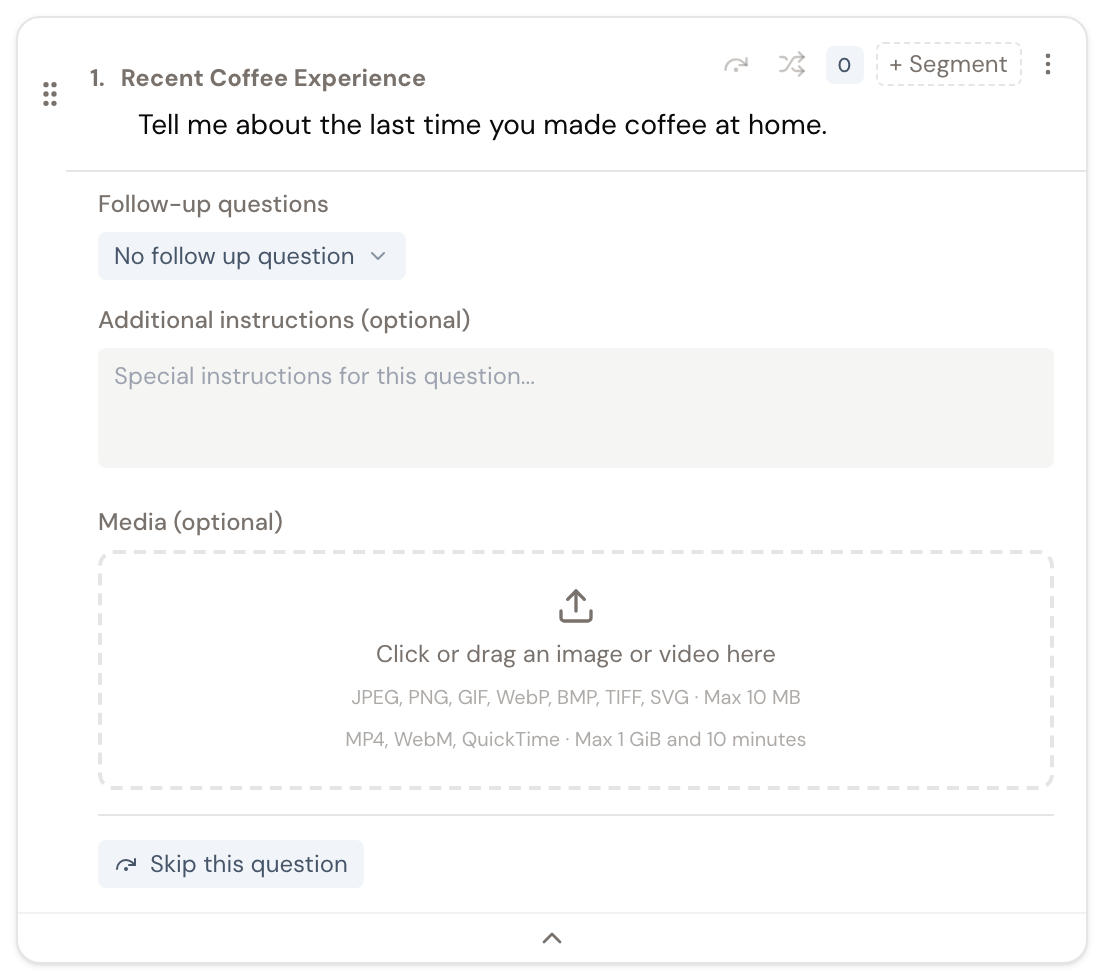
- 0 asks no follow-up.
- 1 asks the exact follow-up you provide.
- Each asks the specified follow-up about every part of a multi-part answer.
- Probe lets the AI probe adaptively for more detail.
When you choose 1 or Each, enter the exact follow-up in the expanded card. For a single follow-up, also choose whether the main question or follow-up should be analyzed as a scale. The other answer is analyzed as categories, while both results remain connected.
xelper creates a separate topic report for every topic in the guide. The main question and follow-ups within one topic are therefore analyzed together in that report. If a follow-up has its own research objective and should receive a separate topic report, create a new topic with its own question.
Use Additional instructions to tell the AI how to handle this particular question—for example, which perspective to take, which terms to explain, or what to pay special attention to. These instructions guide how the AI handles the topic in the conversation; they are not read aloud or shown to participants as a separate message.
Limit questions to segments
The segment controls on a question determine who receives it. With no segment selected, the question is available to all participants. A question assigned to one or more segments appears only when the interview starts from a matching segment link.
You can create segments directly from the selector. Segments determine both the relevant questions and the available test and field links, so define them before completing your tests.
Skip, randomize, or delete questions
Skip this question retains a question in the guide but prevents it from being asked. Use this when you want to remove content temporarily without losing it.
Use the randomization control to include individual questions in randomization or exclude them from it.
A question used in conducted interviews cannot be deleted. Its three-dot menu can open the affected interviews. This preserves the guide used for those conversations.
Add images and videos
Expand a question or Opening entry to upload an image or video. xelper accepts common image formats and MP4, WebM, and QuickTime videos. Videos may be up to 1 GiB and ten minutes long. Video optimization continues in the background if you leave the page.
Media is not translated automatically. Use suitable material for each language in a multilingual interview.
Use Markdown and placeholders
Question text supports Markdown such as **bold** and *italic*. Placeholders connect the guide to URL parameters in the interview link. For example, {{name}} is replaced with the value of the name parameter: if the link contains &name=Anna, the AI uses “Anna” at that point in the interview. The parameter and placeholder names must match exactly, including capitalization.
Once a placeholder occurs in the guide, you can provide an example value under Chatbot Links or Test Interview Guide. During fieldwork, matching custom URL parameters are also stored as interview metadata and passed to the completion or quality-check redirect.
Work with the Interview Guide Assistant
The Interview Guide Assistant can draft a new guide, revise existing questions, or review the complete structure. You can enter text or record a voice message.
Create new guide opens a short workflow for the research topic, audience, and optional areas of emphasis. Ask for feedback asks the assistant to review the current guide. You can also paste an existing draft into the chat or give a focused instruction such as “Make question 3 more neutral.”
The assistant does not silently change the guide. Suggestions first appear beside the affected content. Review each one and select Keep change or Revert change. You can keep or revert several proposals together. Proposed new questions must be decided individually before you can continue the assistant conversation.
When a project has several variants, the assistant edits only the selected variant. Renaming a topic can also affect existing results and other variants, so xelper asks for confirmation before applying such a rename.
Manage variants
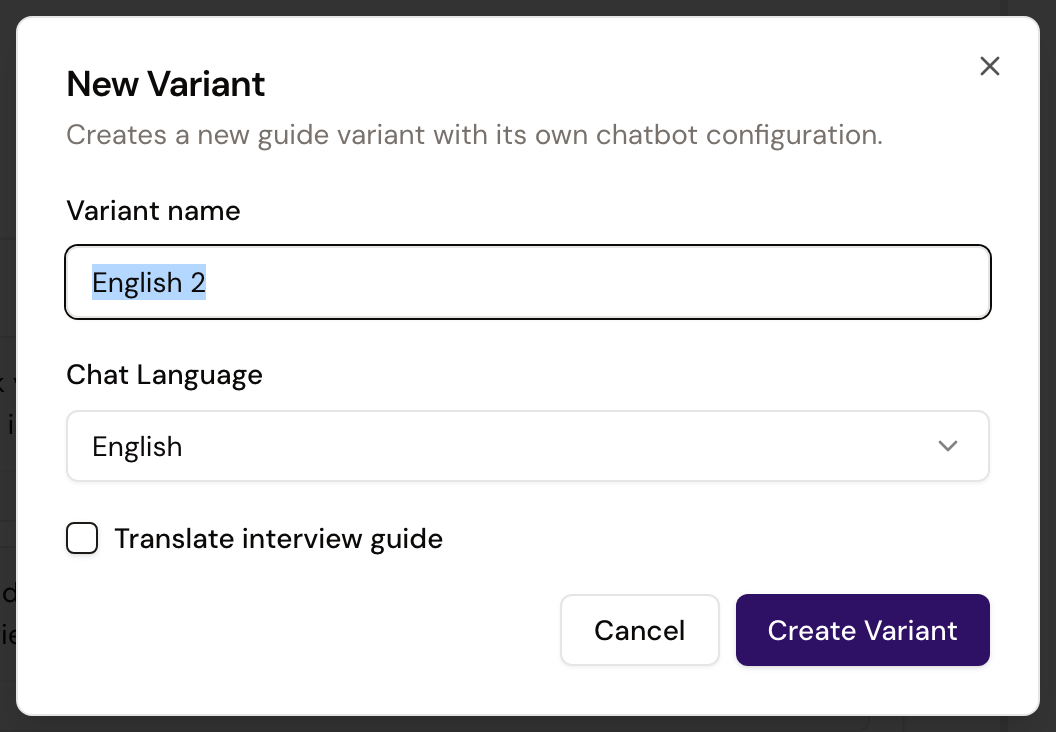
Variants are different versions of the interview guide. They are normally used to offer the same guide in several languages. Select the required variant above the guide. New Variant copies the current variant and asks for a name and chat language. Select Translate interview guide if xelper should translate the text while creating it.
Structure and interview settings stay synchronized across variants. Translatable text, additional prompt instructions, chatbot settings, and media are maintained for each variant. You can also translate an individual question into the other variants from its three-dot menu.
The Original variant and variants already used for interviews cannot be deleted. A language change applies only to future interviews. If the interview language differs from the project language, Translate interviews can translate responses into the project language before analysis.
Configure a variant
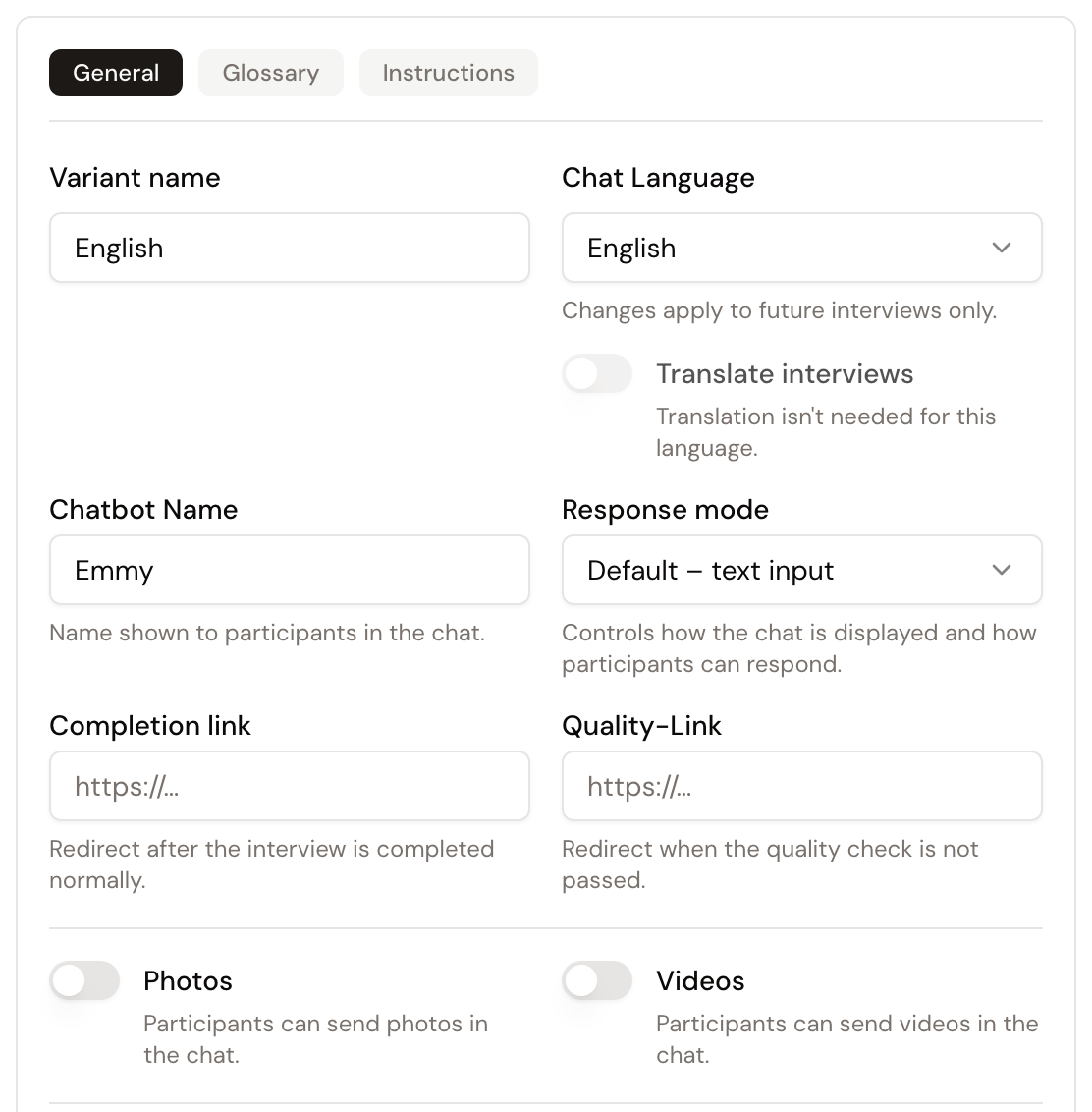
Open Variant Configuration to define the behavior of the selected variant.
Under General, you can edit:
- the Variant name and Chat Language
- the participant-facing Chatbot Name
- the Response mode
- the Completion link for regularly completed interviews
- the Quality link for interviews that fail the quality check
- whether participants may send photos or videos
- whether the Participant link active switch is on
Available response modes include Messenger with text and voice messages, Messenger with text only, Online Survey with one question per view, Online Survey without voice input, voice-first interviews, and voice-only interviews.
Under Glossary, add brands, product names, abbreviations, and other terms that should be recognized correctly in voice input. Under Instructions, add guidance about tone, terminology, or question style that applies to the entire guide in this variant. By contrast, Additional instructions inside a question apply only to that individual question.
Taking a variant offline closes it to new participants. It does not retrospectively change interviews that have already started.
Test the guide
Test Interview Guide runs the interview on the same page. For a segmented guide, select a segment first; General topics only tests the general link without a segment restriction. Enter realistic values under Placeholders, then select Apply & reload.
Test the conversation flow and check that questions, follow-ups, media, placeholders, and redirects work as intended.
Auto-Fill runs an automated test. Use it to check the technical flow quickly.
Prepare test and field links
Under Chatbot Links, separate tabs provide the Test Link and Field Link. If the guide uses segments, xelper creates a link for each segment and a General topics only link. Placeholder values entered here are appended to the copied link.
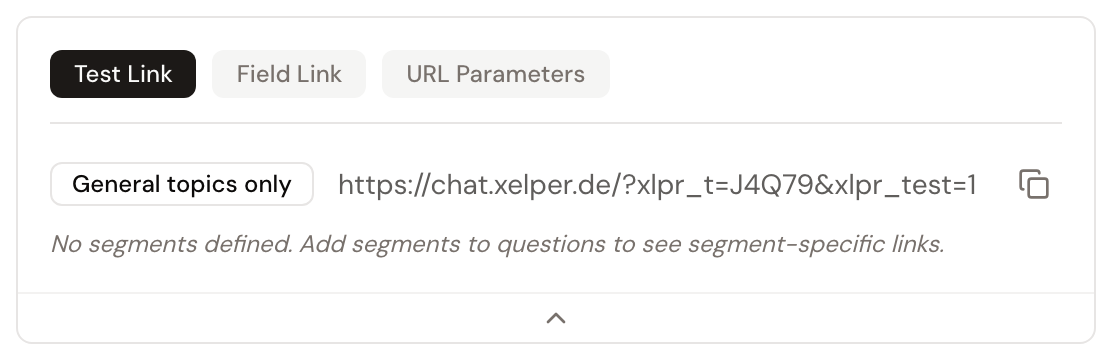
Test links start a session marked as a test and exclude it from regular processing. Share only field links with participants. Before fieldwork, also confirm that Participant link active is enabled.
The URL Parameters tab explains the available technical parameters. xlpr_t selects the chatbot configuration, xlpr_cp selects a segment, and xlpr_test=1 enables test mode. Without a reset, a chat stored in the browser continues when the page is opened again. xlpr_reset=1 clears this local chat and session state so a new interview starts. Custom parameters can replace placeholders with matching names.
Use Download interview guide as .docx to export the current version for documentation or external review. Skipped questions are omitted.
Reset the guide
Reset questionnaire permanently removes every regular question and main topic. The Opening and Closing remain; in Online Survey mode, only the Opening remains. Segments are not deleted.
Reset is unavailable while questions are used by active interviews. Use it only for a genuine restart, not for ordinary revisions.
Before fieldwork
The guide is ready when every variant has been tested end to end, every field link opens the correct segment, and the redirects work. Take unused variants offline, then share only the intended field links.