Analysis & reporting
Understand and review notes
Notes are the smallest analytical unit in xelper. They turn relevant parts of source material into structured evidence that can be searched, filtered, grouped, and traced back to the source.
What a note represents
A note captures one meaning-bearing point from the source material. It is not tied to a fixed number of sentences or speaking turns. A short answer may form one note, while a longer passage may contain several distinct notes.
Each note combines:
- a concise Note that paraphrases the relevant point;
- a verbatim Quote from the source material;
- its source assignment, such as an interview, response, transcript, or participant;
- links back to the source context and, where available, the corresponding media;
- associated topics, metadata, and segments where these are available.
The note is the analytical statement. The quote remains the source evidence used to check that statement in context.
This approach is inspired by Philipp Mayring’s qualitative content analysis: material is reduced and organized systematically while interpretations remain connected to the original text. xelper supports this process with AI.
Review all notes
Open All Notes under Exploration to review the complete set of notes in a project. Each note appears as one row, even when it is associated with more than one topic.
Use the search field to find terms across the notes table. Controls in the column headings let you sort, search, or filter individual columns. You can combine these controls to focus on an interview or response, a participant, a topic, a segment, or another configured field.
Select the star in the Favorite column to mark an especially relevant note when this action is available for your role. The download action exports the notes that match the current search and filters, including matching rows on other pages of the table.
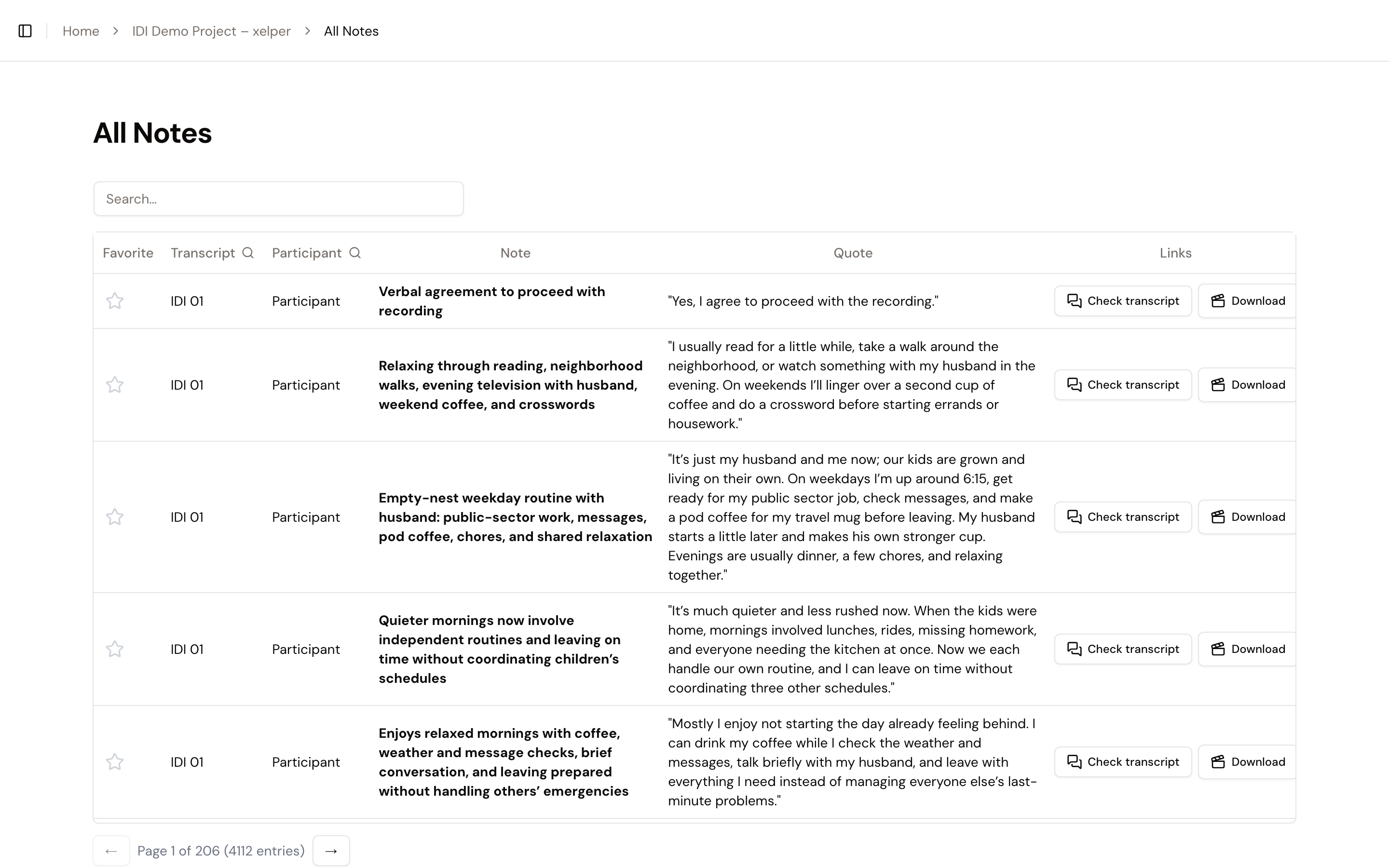
Understand the columns
The columns shown depend on the project configuration and the context in which the notes table is opened.
- Favorite marks notes that deserve particular attention.
- Interview identifies the interview or response containing the source material.
- Transcript identifies the interview or session when the table also distinguishes individual speakers.
- Participant identifies the person whose statement the note represents when participants are shown separately.
- Note contains the concise analytical paraphrase.
- Quote contains the verbatim supporting excerpt from the source material.
- Links opens the source context and, where available, provides a media snippet.
- Topics shows the analysis topics associated with the note.
- Additional configured fields show metadata and segments, such as age group, region, or customer type. These columns can also be used to filter the notes.
Notes tables elsewhere in xelper
The same core notes table appears wherever xelper lets you inspect the evidence behind a result:
- Where a project has a Participants page, Check notes shows the notes assigned to one participant.
- Topic and report views show the notes supporting the selected topic or result.
- Evidence views opened from charts, reports, or Chat with Your Data show the notes included in that specific output.
These tables are already limited to the context from which you opened them. Any additional search or filter applies within that scope. Some columns may be omitted when their value is already clear from the surrounding page.
Some topic, chart, and report views use a coded-analysis table instead of the Note and Quote view:
- Category shows the analytical category assigned within the topic.
- Sentiment shows the classified sentiment.
- Option appears when the analysis uses defined scale or answer options.
- Link opens the corresponding source context.
These columns present another view of the same underlying notes; they do not create a separate set of evidence.
Review a note in context
Start with the Note, then compare it with the Quote. Use Links when you need the surrounding source context, speaker sequence, or tone. The interview or response, any participant shown, the topic, and the active filters place the note in its analytical context.
Next step
Once you are familiar with the available evidence, continue by analyzing the results.