IDIs & focus groups
Edit discussion guides and variants
Discussion-guide variants preserve the guide used for each recording while allowing the study to continue with revised wording or structure. How you submit and apply changes depends on the project's service model.
The following steps apply exclusively to IDIs & focus groups.
Edit an unused guide
Before a guide variant is used for a recording, Admin and Member can edit it in Self Service:
- Click a section name, question-block name, or question text to edit it. Changes are saved automatically.
- Add, copy, or reorder sections and question blocks.
- Use Skip to exclude an item from the selected variant without deleting its content.
- Use permanent deletion only when the item should be removed from every editable draft variant.
The guide is intended to structure the analysis, not prescribe a rigid interview sequence. A separate variant is useful when participant groups receive meaningfully different questions or sections. Small differences in one recording can instead be captured with recording-specific sectioning instructions during upload.
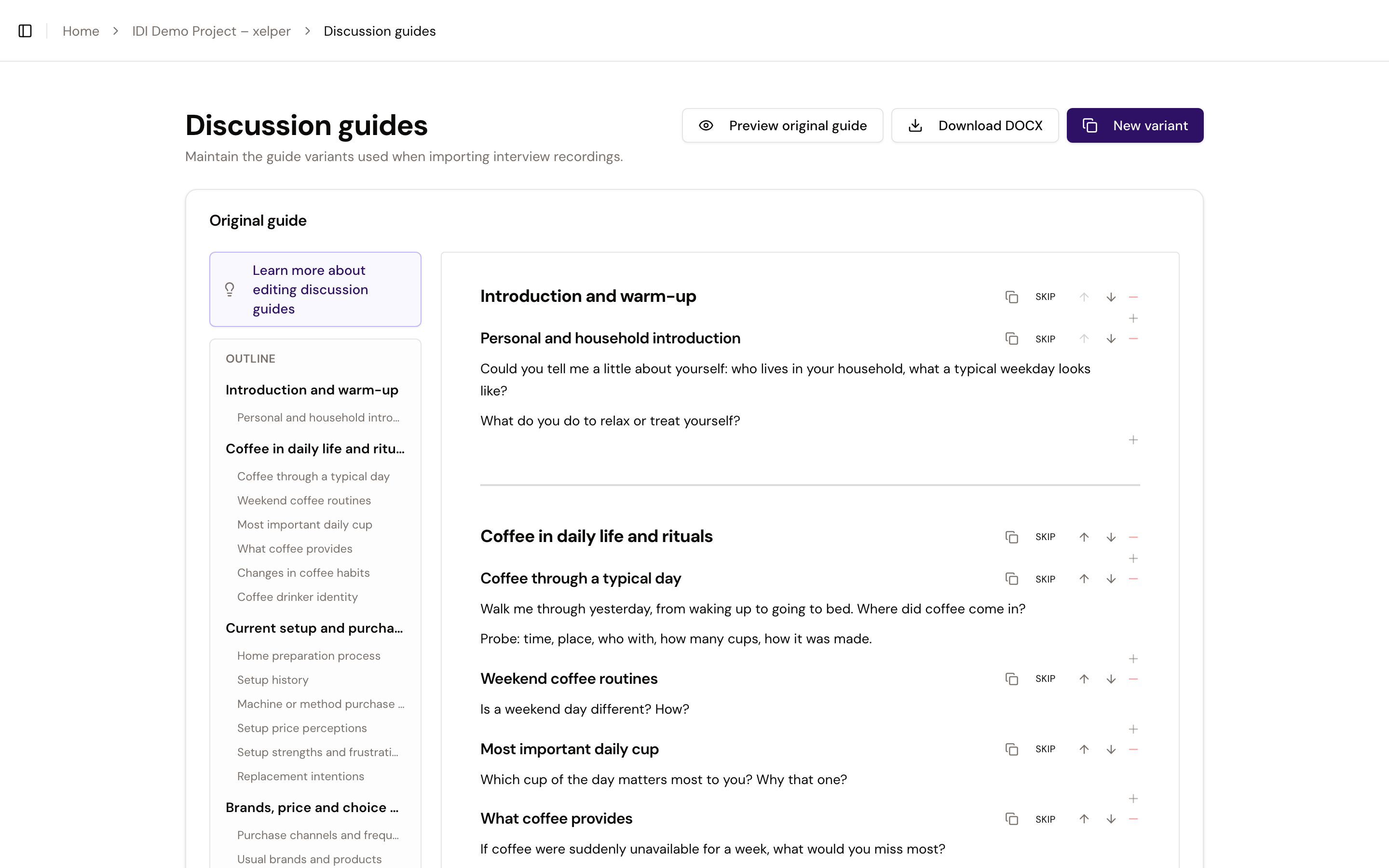
The controls shown in the guide editor affect either the selected variant or the shared guide structure:
Guide controls
Skip
Excludes a section or question block from the selected variant without deleting its content or position.
Unskip
Restores a skipped item in the same position. Restoring a section keeps the individual Skip choices of its question blocks.
Add
Adds a section or question block at this position. A new section includes the question blocks below it in the current section.
Move
Moves an item up or down. At a section boundary, a question block can move into the adjacent section while the shared structure is editable.
Copy
Creates a copy directly below the original. A copied section includes all of its question blocks.
Delete
Permanently deletes the shared item after confirmation. This control disappears once a locked guide or generated analysis depends on the item.
Variant status
Editable
The variant has not been used for a recording yet. Changes are saved automatically.
Locked
The variant has already been used for a recording. Create a new variant for structural or wording changes.
What happens after a guide is used
A guide variant becomes locked when it is first used to transcribe and analyze a recording. This preserves the guide structure behind that recording and its existing analysis.
The locked variant remains available for review and selection, but its questions, ordering, and structure cannot be edited. Section and question-block names can still be renamed after confirmation because those names are shared with existing guides and analysis.
For any other change, create a new variant. Existing recordings remain associated with the locked variant; select the new variant only for later recording uploads.
There is no manual unlock action. A variant becomes editable again only if the last upload or interview that locked it is deleted. Do not delete a valid recording just to change its guide; create a new variant instead.
Create a new variant
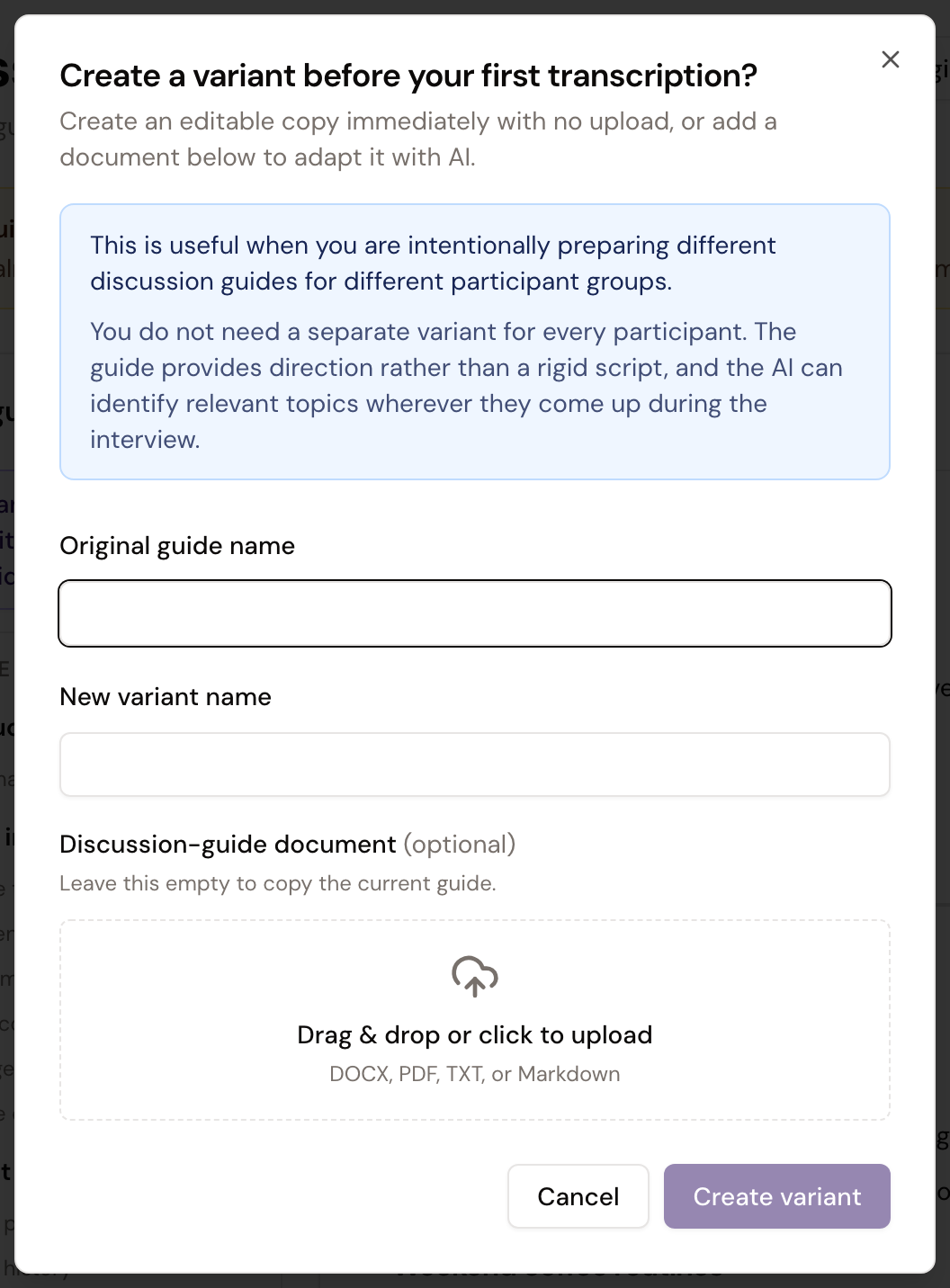
Open Discussion guides, select the guide you want to use as the starting point, and choose New variant.
- Give the new variant a clear name.
- Leave the document field empty to create an editable copy of the selected guide.
- Alternatively, upload a revised discussion-guide document. xelper uses it to adapt the new variant automatically.
- Review the generated structure before assigning the variant to later recordings.
The new variant remains editable even when its source is locked.
When only one variant is available, xelper selects it automatically during recording upload. When several variants are available, select the appropriate one for each upload batch. That selection is fixed for the recordings in the batch.
Understand shared and variant-specific changes
Some guide content is shared so related variants remain consistent:
- Questions, ordering, and Skip/Unskip choices belong to the selected variant.
- Section and question-block names are shared. After confirmation, renaming one updates the shared name in guides and analysis labels.
- A newly added item is included in the selected variant and initially skipped in other editable variants.
- Permanent deletion removes a shared item from every draft variant. It is unavailable once a locked guide or generated analysis depends on the item.
Use Skip when an item should disappear from one variant but remain available elsewhere.
In Self Service, Admin and Member can edit discussion guides; Client cannot make changes.
Next step
Import and transcribe recordings with the guide variant and any sectioning instructions that apply to the next batch.
Provide guide variants
The guide variants are usually known before the project begins. Upload all existing versions under Files and use Project Briefing to explain which audiences or segments each version belongs to. One document may contain several variants; you do not need to split it first.
If another guide version is added during fieldwork, upload it under Files and describe who it applies to in Project Briefing. xelper adds the corresponding variant while preserving the guide versions already used for existing recordings.
When you later add the recordings, upload only the recording files under Files. You do not assign the guide variant yourself. Make sure xelper can identify the correct variant for every recording—for example through clear filenames or an additional document that lists the assignments.