IDIs & focus groups
Import and transcribe recordings
Admin and Member configure and upload IDI or focus-group recordings under Import recordings. Client cannot start uploads. The settings apply to every recording in the upload batch and determine how xelper transcribes and sections the material.
The following steps apply exclusively to IDIs & focus groups.
The following steps apply exclusively to Self Service.
In Managed Service, upload the recording files under Files. xelper handles their configuration and assignment.
Before you upload
Complete the project and discussion-guide setup first. If the study uses several guide variants, decide which variant applies to the recordings in the next batch.
Group only recordings that share the same language, guide variant, speaker setup, translation choice, and sectioning instructions. Use a separate batch when one of these settings differs.
1. Configure the recording batch
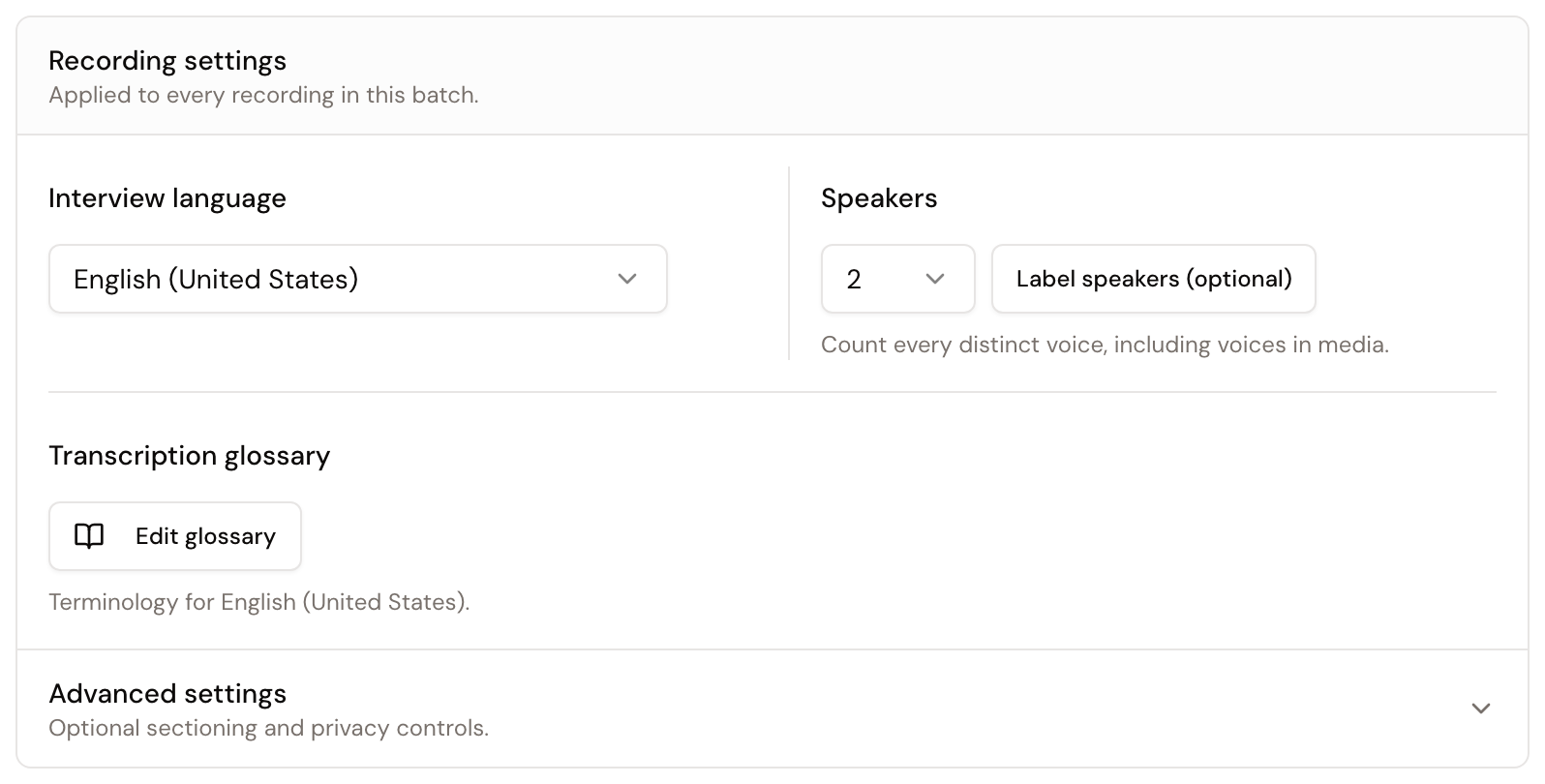
Review the Recording settings before selecting files:
- Interview language: Choose the language spoken in the recordings.
- Speakers: Enter the expected number of distinct voices, including voices from played media. Where available, you can add optional speaker labels such as “Interviewer” or “Participant.”
- Transcription glossary: Review and save the glossary for the selected interview language before processing.
- Discussion guide: When the project has several variants, select the variant used for this batch. The selection is fixed for the uploaded recordings.
- Translation: If the interview language differs from the project language, choose whether the transcripts should be translated into the project language.
2. Add sectioning instructions when needed
Open Advanced settings when the recordings need guidance that is not already captured by the discussion guide.
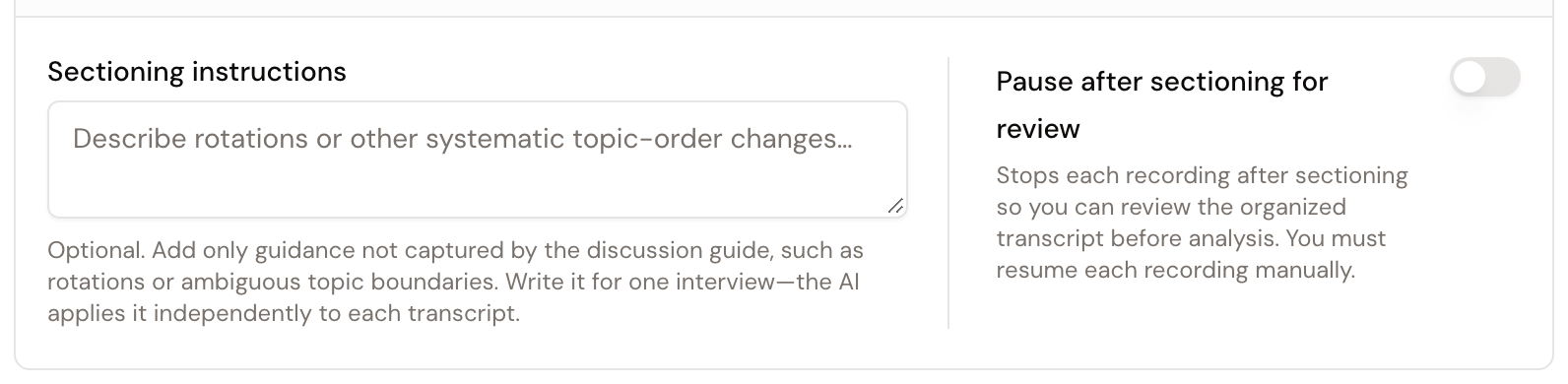
Use Sectioning instructions for rotations, systematic changes in topic order, or ambiguous topic boundaries. The instructions apply independently to every recording in the batch. Use separate batches when different recordings need different instructions.
Enable Pause after sectioning for review when you want to check the organized transcript before xelper continues with the analysis. With this setting enabled, every recording pauses separately and must be resumed manually.
3. Upload the recordings
Select one or more audio or video files. Check the settings once more before starting: every file in the batch uses the same configuration.
Follow each recording under Interview progress while xelper uploads, transcribes, and prepares it.
4. Review a paused recording
When a recording reaches the review checkpoint, choose Edit sectioned transcript. Check the headings and the assignment of transcript passages to sections.
Make any necessary corrections, then choose Resume. xelper continues the remaining analysis steps. If you did not enable the pause, processing continues automatically.
Next step
When the interviews are ready, continue by analyzing the results.