IDIs & focus groups
Review transcripts
Use Transcripts to review and organize the interviews and focus-group sessions in a project.
The following steps apply exclusively to IDIs & focus groups.
Review the table
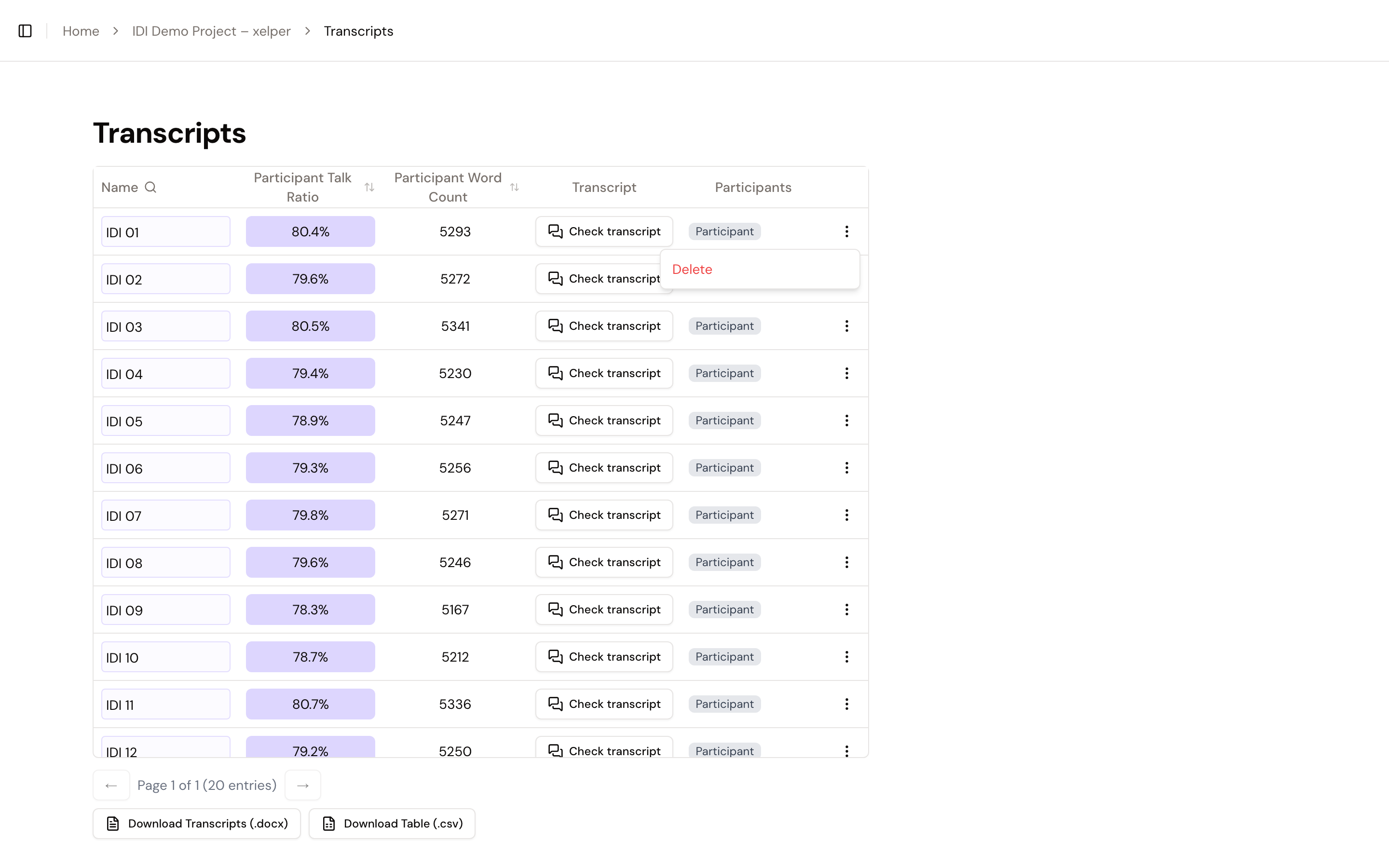
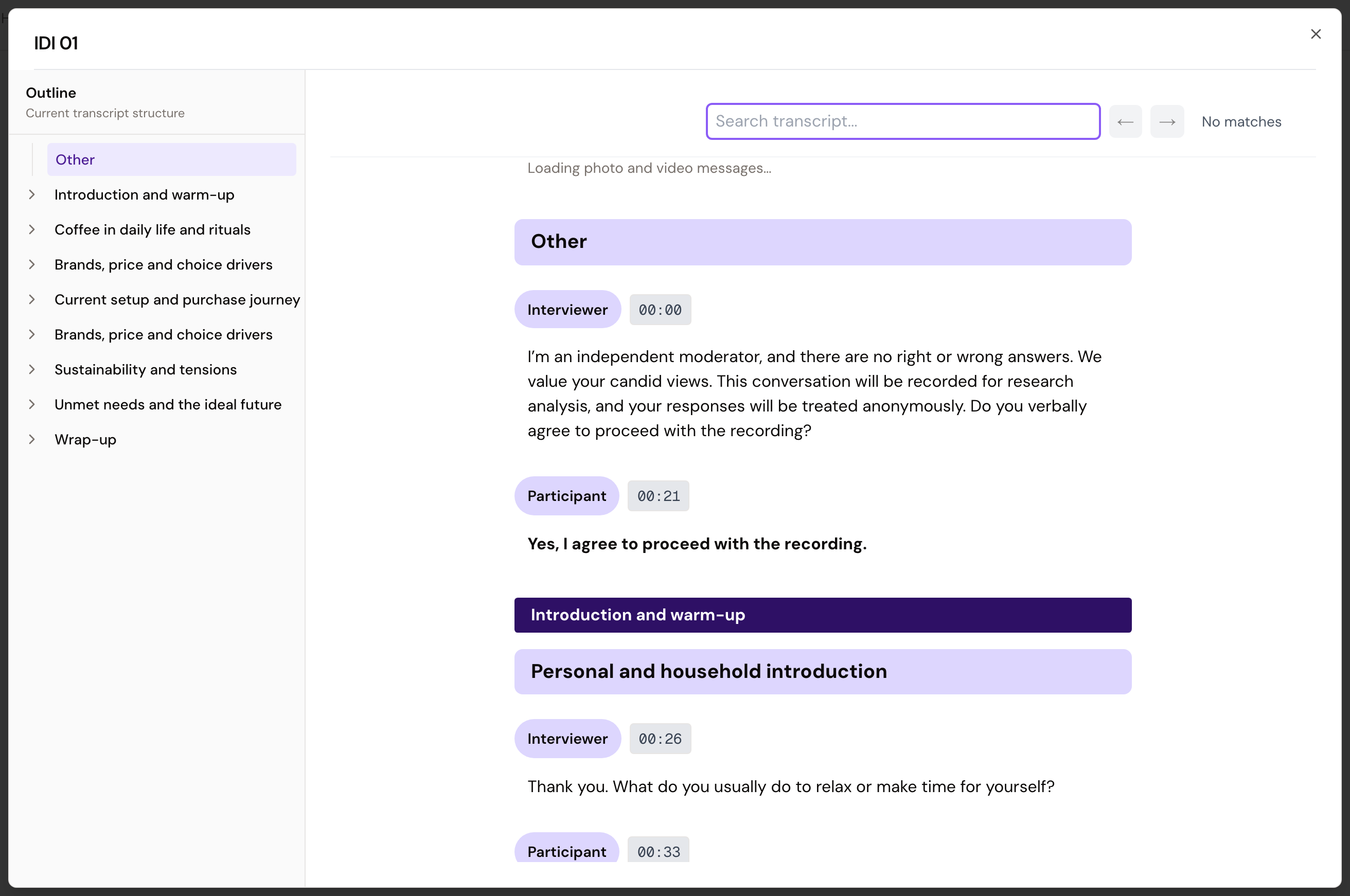
The table contains one row for each interview or focus-group session. Select Check transcript for an entry to open its transcript.
Use the controls in the column headers to search, filter, and sort the table. The download action exports the transcripts in the current table view.
Rename a transcript
In an editable project, select the name in the Name column, enter the new name, and save it. Use names that distinguish sessions clearly in reports and source references, especially when a focus-group project contains several sessions.
Delete a transcript
Open the three-dot menu at the end of the row and select Delete. Deleting an interview also removes its participants and notes. The original uploaded recording remains under Files.
The deletion cannot be undone.
Who can make changes
Admin, Member, and Client can review and download the transcripts available to them.
Admin and Member can rename and delete transcripts. Client has read-only access.
The Transcripts page is read-only for Admin, Member, and Client. xelper maintains transcript names as part of the managed workflow.
Next step
Continue by reviewing and managing participants.