IDIs & focus groups
Generate reports and topline
Start the project’s initial analysis once the transcripts, notes, participants, and segments are ready. Generate reports and topline creates the connected set of reports used to explore and present the results.
The following steps apply exclusively to IDIs & focus groups.
What report generation creates
Each generation creates:
- a topic report for every topic from the discussion guide;
- additional Suggested Topics for relevant findings outside the discussion guide;
- an optional comparison report comparing the groups within one segment, such as age group;
- a section summary combining the topic reports within each section of the discussion guide;
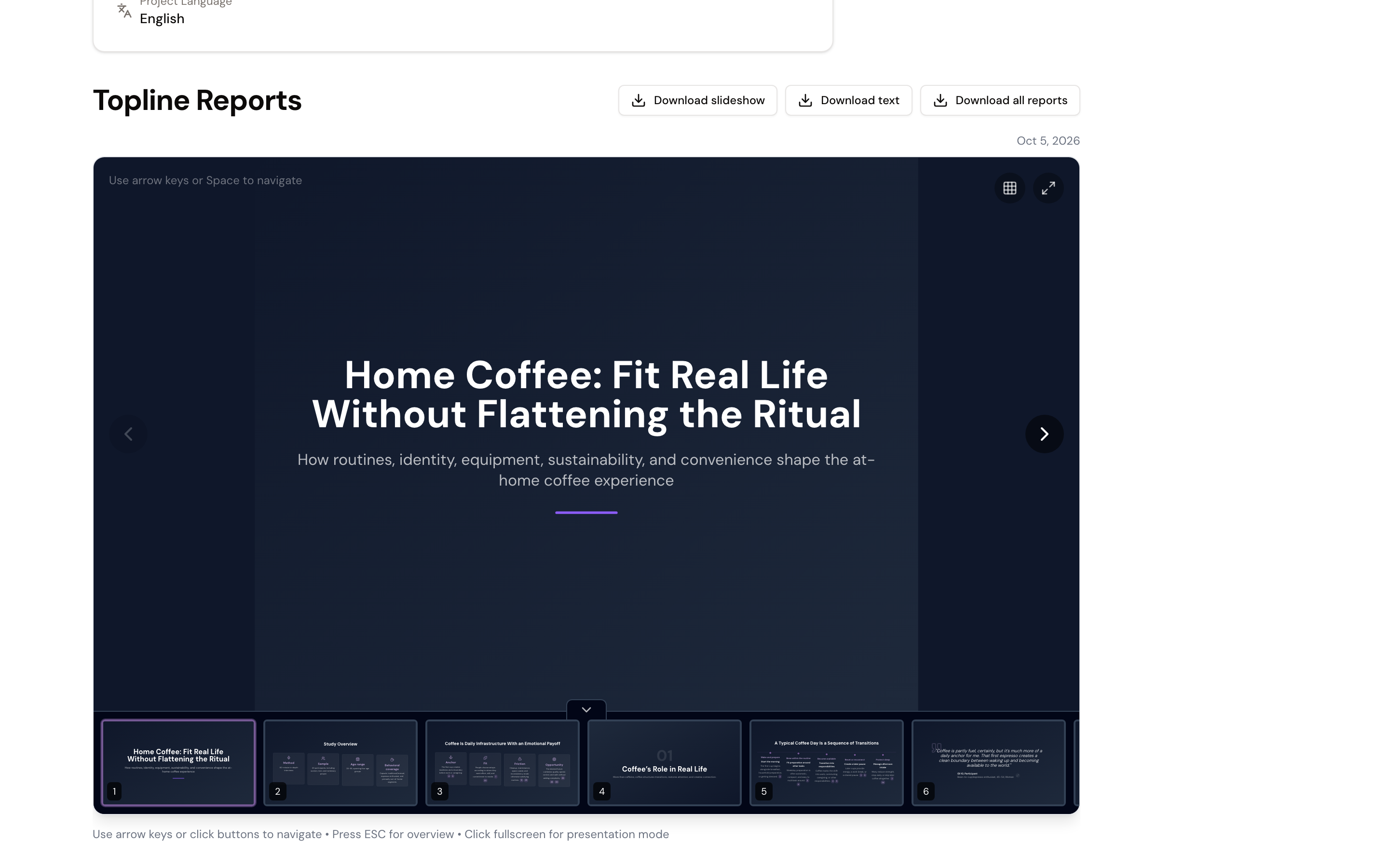
- a topline report aggregating the reports across the project in two formats: a written summary and a slideshow.
The topic reports provide the detail. Section summaries bring related topics together, while the topline report provides the project-wide view.
Prepare the project
Before starting report generation:
- Make sure the recordings or transcripts have finished processing.
- Review participant names and classifications.
- Add the segment fields and values you want to use for comparisons.
Report generation uses the project data available when it starts. If further interviews will be added, use the first generation for the interim report and save the second for the final report.
Start report generation
Admin can start up to two complete report generations:
- The first generation can be used as an interim report.
- The second generation can be used as the final report.
To start a generation:
- Open Project Overview.
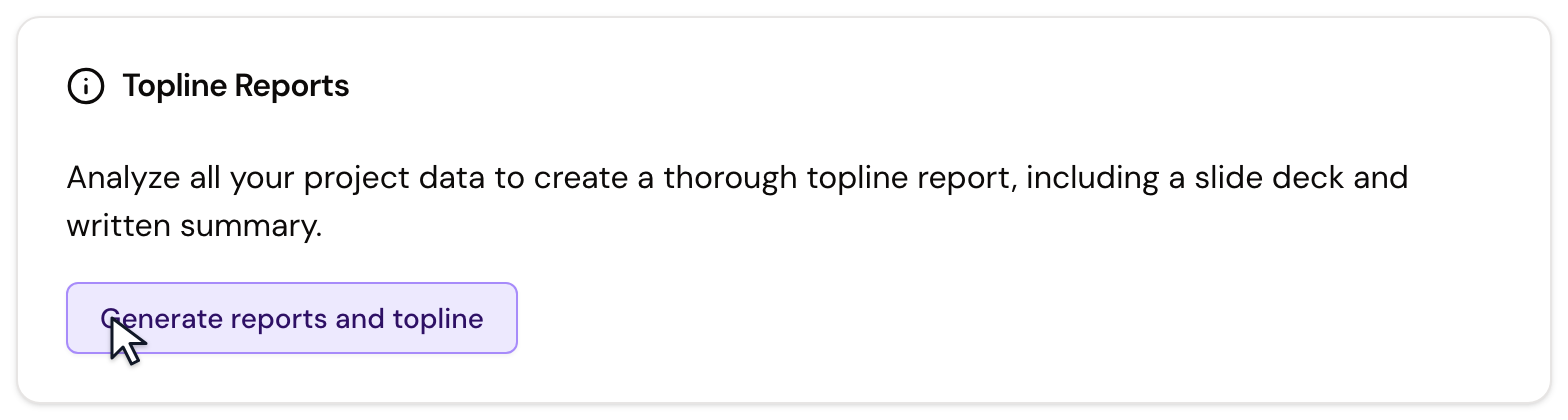
- Select Generate reports and topline.
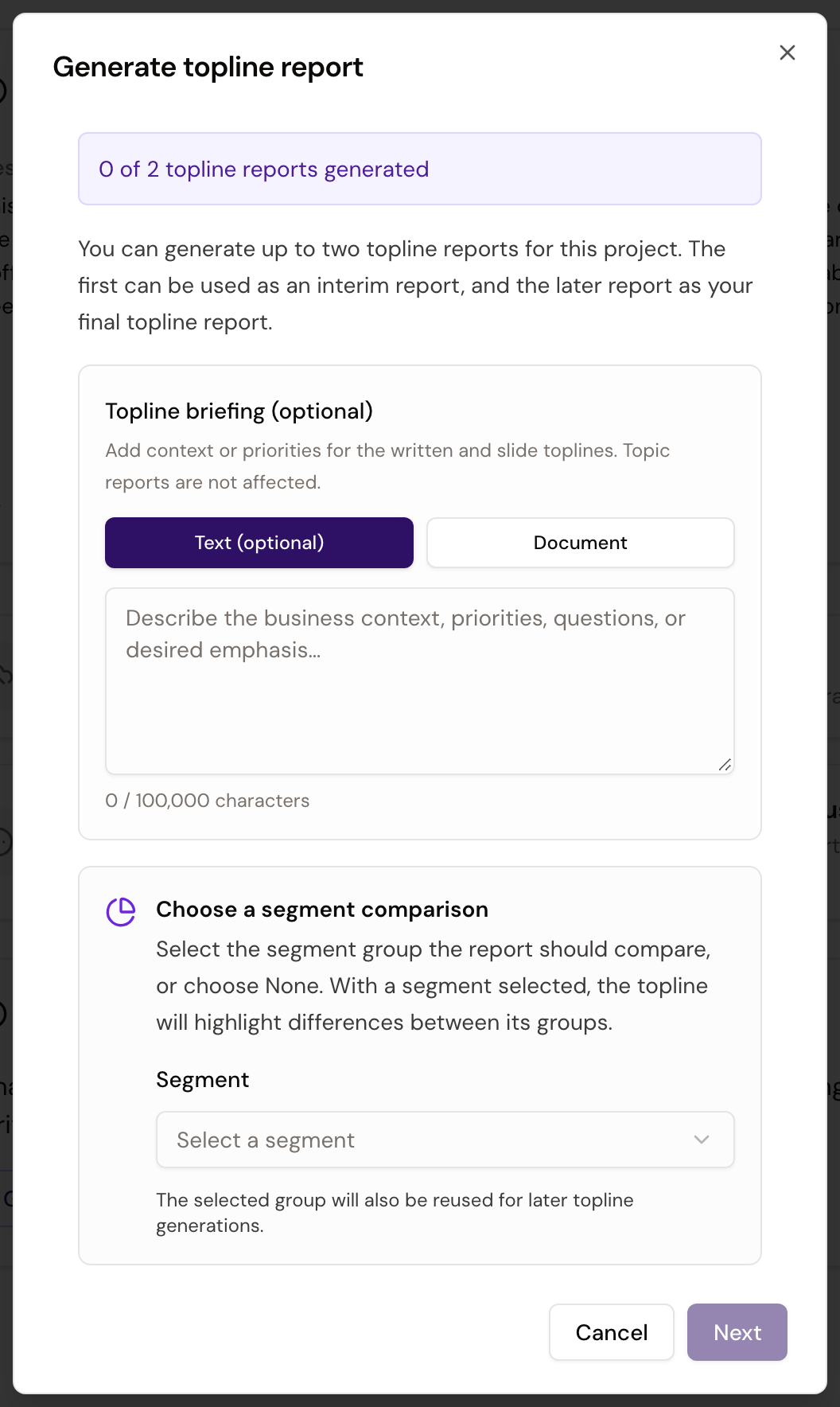
- Optionally add a Topline briefing as text or a document. Use it to describe business context, priorities, or questions that should receive particular attention in the written summary and slideshow. It does not change the topic reports.
- Under Choose a segment comparison, select one segment group or None. When you select a segment, xelper creates a comparison report for its groups and highlights relevant differences in the topline report. The selection from the first generation is reused for the second.
- Select Next and choose who should receive the completion email. Send to me or Send to all project members starts report generation.
The number, timing, and scope of report generations depend on the agreed service. xelper starts the analysis and prepares the topic reports, section summaries, optional comparison report, and topline report according to that agreement.
While the reports are generated
The Project Overview shows the current stage of report generation. You can continue using other parts of the project while xelper creates the reports. When the written summary and slideshow are ready, xelper emails the selected recipients to let them know that report generation is complete.
After report generation
Open the topline report for the project-wide view, then move into the section summaries and topic reports for more detail. If a segment comparison was included, open the comparison report to see differences between its groups.
The reports remain connected to the underlying notes, quotes, transcripts, and recordings. This lets you move from an aggregated result back to its source context.
Next step
Continue with topic reports to understand the reports, their counts, and their supporting evidence.