Results & exploration in the dashboard
Use Chat with Your Data
Chat with Your Data lets you ask questions about a project in natural language and continue exploring the answer in a conversation. xelper draws on the project’s notes and available topic summaries, links answers back to their sources, and can include charts when they help explain the result.
Start a conversation
Open Chat with your Data in the project navigation and select New Chat. Enter a specific question in Ask anything about your data…, choose any filters you need, and then select:
- Quick for a faster answer based on a smaller selection of relevant material.
- Smart for a broader analysis that can also include charts from the latest project analysis.
Pressing Enter sends the question in Smart mode. Use Shift+Enter or Alt+Enter to add a line break.
xelper saves the conversation automatically and gives it a title. Use All chats to see the project’s conversations and My chats for conversations you created. Everyone who can use Chat with Your Data in the project can read its shared chats. Only the person who created a chat can continue or delete it.
Choose the source scope
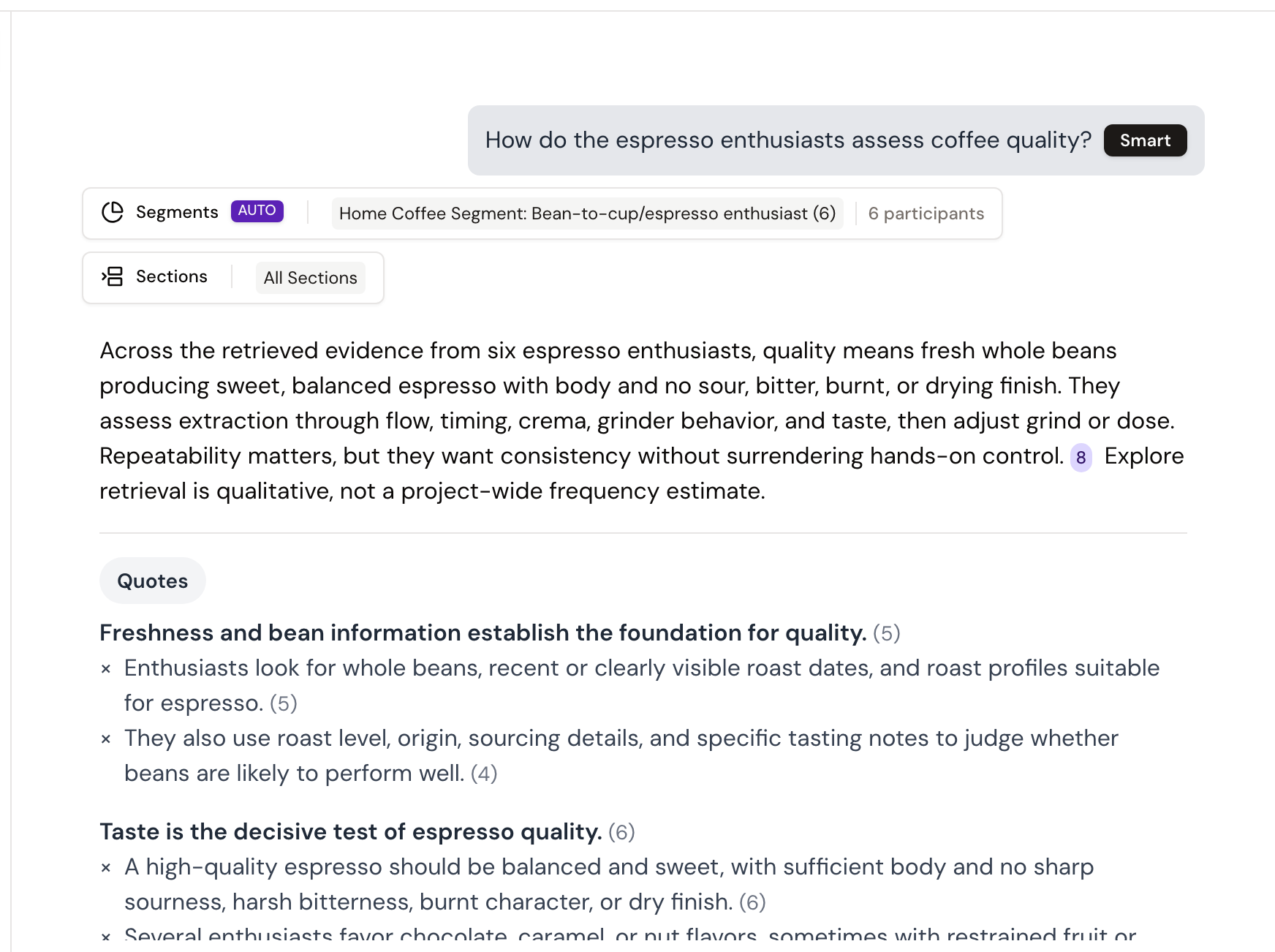
Filters define which part of the project xelper uses for the next question. In Smart mode, xelper can apply a relevant filter automatically; the AUTO label identifies it. The selected scope appears beneath your message, so it remains clear which material the answer refers to.
Chat projects
Use Segments to focus the question on selected groups. Without a selection, the question covers all available interviews.
Chat projects do not use the Sections filter. Their source material is already organized through the interview-guide topics used during collection and analysis.

IDIs and focus groups
Use Segments to focus on selected groups of participants. Use Sections when the question should draw only on particular parts of the discussion guide. Without filters, xelper can draw on all available participants and sections.

Read and continue the answer
Across project types, an answer can contain:
- a concise summary;
- findings grouped under analytical headings;
- links to related topic results or reports;
- clickable statements that open the supporting notes and quotes;
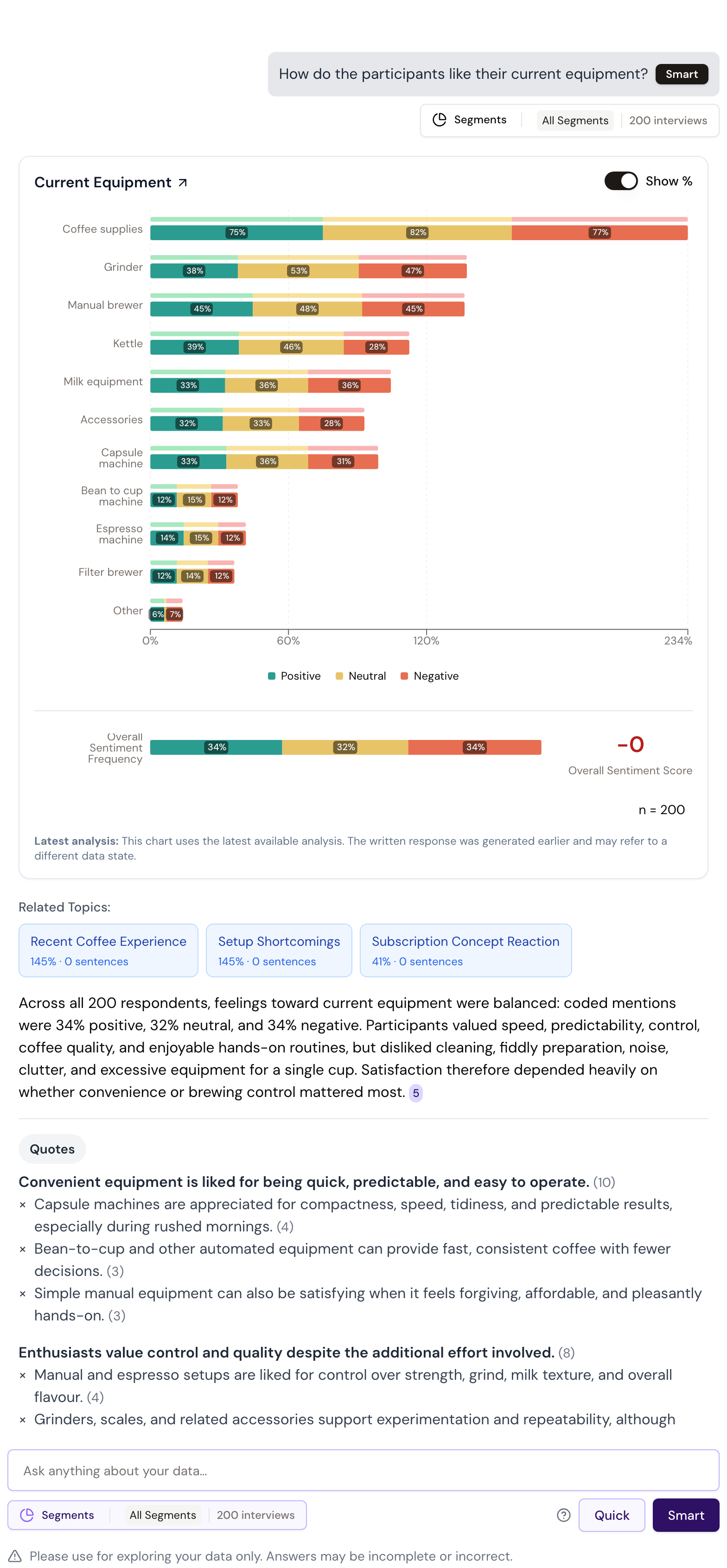
- a chart when the question can be answered with an existing quantitative analysis.
The source count at the end shows how much project material is represented in the answer. If only a small amount of material supports the answer, xelper displays an additional notice.
Chat projects
Counts show how many statements and interviews are represented in the answer. Related-topic links open the corresponding topic results. When a chart is available from the latest coded analysis, you can use it to examine the categories behind the answer and open their supporting notes.
IDIs and focus groups
Counts show how many statements and participants are represented in the answer. Related-topic links open the corresponding topic reports.
Continue in the same chat when the next question builds on the conversation. Start a new chat when you want to investigate a separate topic or use a different source scope.
Use chat for exploration
Chat answers are intended for exploring the project and may be incomplete. View the linked notes, quotes, and active filters to understand the answer in context. For reliable, complete results in Chat projects, use Topic Results. In IDI and focus-group projects, use topic reports or a Custom or filtered report.