Run an AI-moderated study
Manage fieldwork
Use Transcripts during fieldwork to monitor incoming interviews, understand how they were classified, and identify conversations that need closer review.
The following steps apply exclusively to Chat projects.
Admin and Member can review interviews and—when allowed by their project capabilities—change their classification. Client can review the available interviews and transcripts but cannot make changes.
Review fieldwork progress
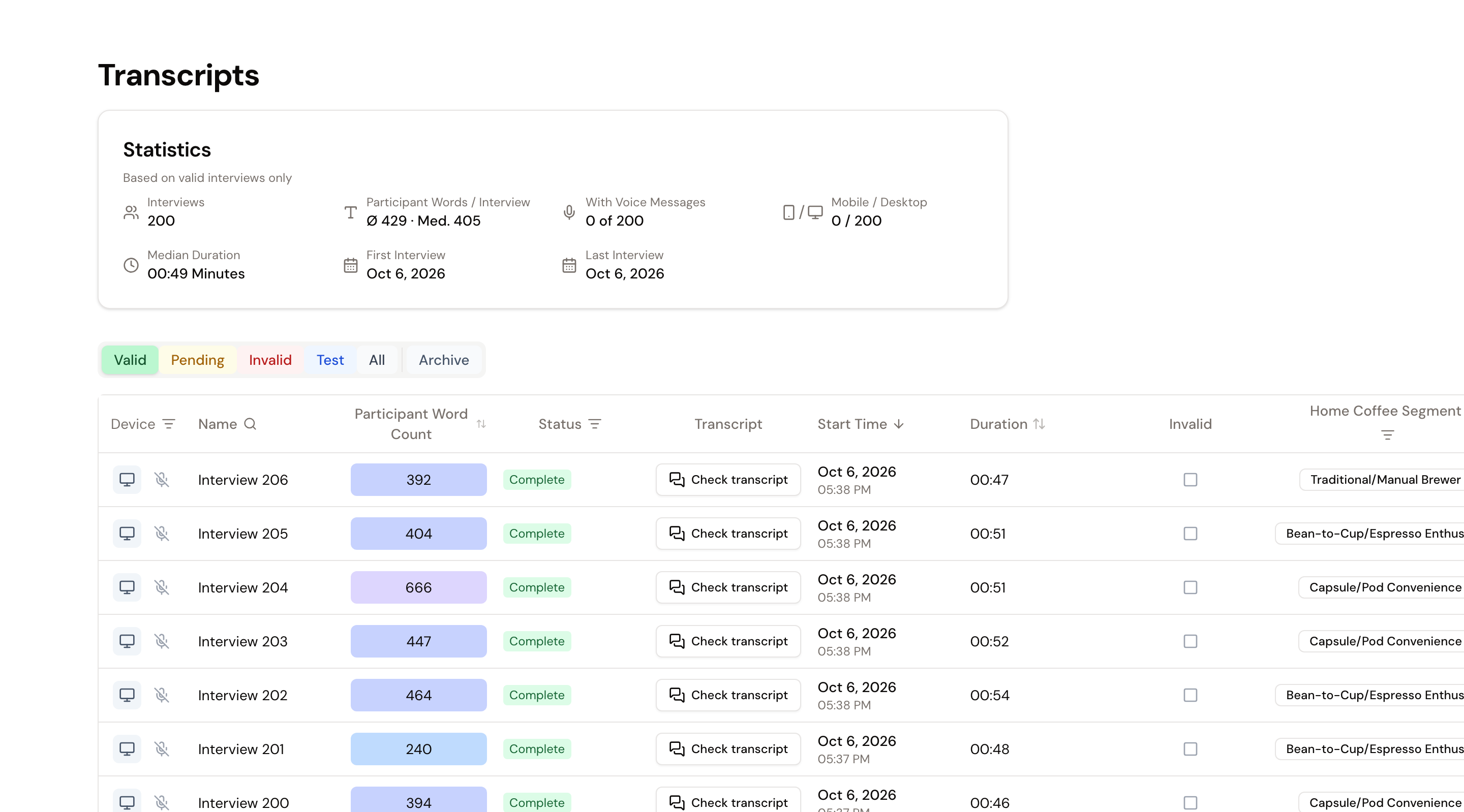
The statistics above the table are based only on valid interviews. They show:
- the number of valid interviews
- the average and median participant word count per interview
- how many interviews contain voice messages
- the split between mobile and desktop devices
- the median interview duration
- the dates of the first and latest valid interviews
Use these values to check whether interviews are arriving and how conversation length, response volume, voice input, and device use are developing.
The page refreshes automatically when interviews arrive or their status changes while preserving the selected tab, filters, and current page.
Understand the status tabs
The tabs separate interviews by how they may be used:
- Valid contains regular interviews classified as valid. Only these interviews contribute to the statistics and regular analysis.
- Pending contains interviews that still require a manual decision. Review the conversation, then mark it as valid or invalid.
- Invalid contains interviews that failed the quality check or were manually marked invalid. They are excluded from regular analysis.
- Test contains test interviews and automated test runs, keeping them separate from fieldwork data.
- All shows every non-archived interview regardless of its classification.
- Archive contains invalid interviews that no longer count as active uses of the interview guide. This allows topics to be deleted when they are used only by those interviews, while the interviews themselves remain stored.
Table rows and available filter values always apply to the currently selected tab. Test interviews and automated test runs cannot be classified as valid or invalid.
Review an individual interview
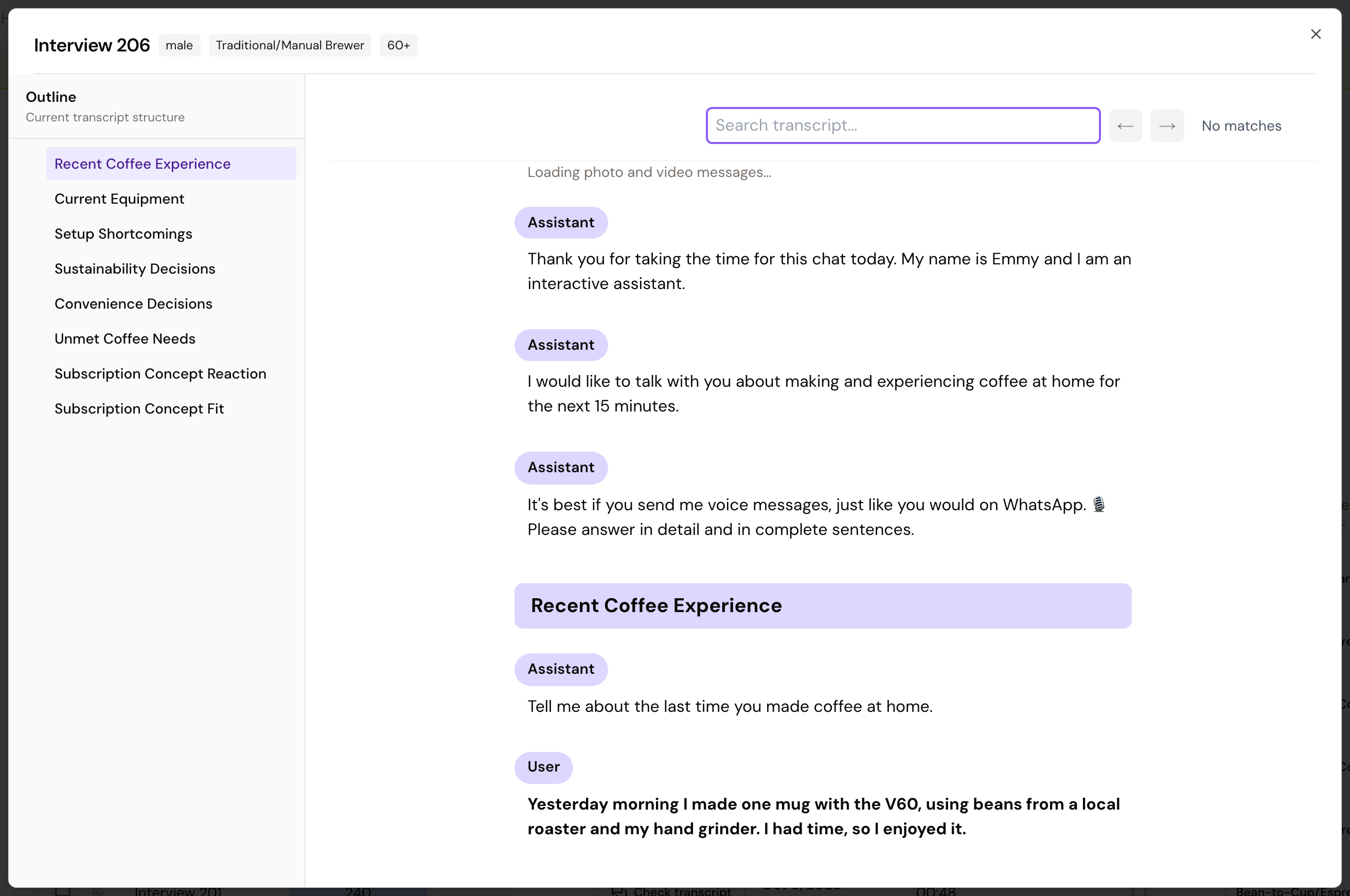
Select Check transcript in the Transcript column to open a conversation.
Depending on the interview, the table also shows its start time, duration, word count, use of voice messages, device, segment, and other metadata stored from the interview link.
In an editable self-service project, Admin and Member can also rename an interview directly in the table. A clear name makes it easier to identify later in downloads and source references.
The Status column can flag automated test runs, complete or incomplete conversations, unusual copying and pasting, and particularly short or long responses.
Resolve pending interviews
Open an interview under Pending and decide whether it should be valid or invalid. Admin and Member can classify one pending interview or all currently filtered pending interviews together.
Choosing Valid includes the interview in the regular data set. Choosing Invalid excludes it. Before applying a bulk decision, use filters to ensure that only the intended subset is affected.
Flag a suspicious interview
Admin and Member can open the three-dot menu and select Report fraud or AI use. The report immediately marks the interview invalid, and an optional note can document the concern. Admin and Member can later reverse the decision and mark the interview valid. Client cannot create or change reports.
Search, filter, and sort
Use the column headings to search, filter, and sort values. For example, filter by segment, metadata, device, voice use, or interview status to review a particular subset. Active filters apply in addition to the selected status tab.
Download transcripts and media
The download action exports transcripts from the current filtered view as .docx files in a ZIP archive. The export also includes matching interviews from additional table pages.
For Chat projects, you can also download transcripts together with photos and videos sent by participants. A media export is limited to 100 interviews, so use status tabs and filters to narrow larger projects first.
Use Download Table (.csv) to export the table values for the filtered interviews. Downloads are unavailable under Archive.
Archive or delete interviews
Archiving is a housekeeping step for invalid interviews that have already been reviewed. First mark an interview invalid, then select Archive from its three-dot menu. Pending interviews, test interviews, and automated test runs cannot be archived.
The interview and its transcript remain stored, but the interview leaves Invalid and All and is available only under Archive. Its classification and metadata can no longer be edited there, and downloads are unavailable. Use it for invalid interviews that no longer need to remain in the active quality-review workflow.
During fieldwork
Review the page at a frequency appropriate for your study. In particular, check:
- whether new regular interviews are arriving under Valid, Pending, or Invalid
- whether pending interviews need a decision
- whether conversation length, response volume, voice messages, and device use look plausible
- whether individual transcripts reveal technical problems or unusable responses
- whether segments and URL metadata are arriving as intended
Interview-guide changes apply only to future interviews. If you change the guide or a variant during fieldwork, document when the new version came into use.
After fieldwork
Resolve any remaining pending decisions and confirm that the valid data set is complete. You can then investigate the results with Chat with Your Data.